Click Edit

to change the Notes for the currently selected design. The Notes dialog will appear.
The Notes dialog allows free text and keywords to be added to the Notes for the selected design. Type additional Notes in the Notes box.
Use Ctrl+Enter to start a new line of text.
Up to 2000 characters can be entered in the Notes.
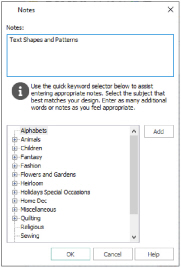
Keywords
Select Keywords for the embroidery from the list, then click Add to add them to the Notes for the embroidery.
Change the Notes for a Design
-
Open the design for which you want to amend the notes.
-
Click Edit

.
-
In the Notes text box make your desired changes to the Notes.
-
To add Keywords, select the keyword from the category heading or subcategory in the scrolling list. Then click Add.
-
Click OK to save your amended Notes and added keywords.
Use Ctrl+Enter to start a new line of text.
Double-click to expand the folders until the desired keyword is highlighted. (Alternatively click on the + sign.)